> ## Documentation Index
> Fetch the complete documentation index at: https://docs.internal.nscale.com/llms.txt
> Use this file to discover all available pages before exploring further.
# Overview
> The CLI provides a powerful, automation-friendly interface to all Nscale resources and services.
## Installation
You can install the CLI using any of the following methods:
### Download binary
Download the binary for your operating system from the [releases page](https://github.com/nscaledev/homebrew-tap/releases).
### Homebrew (for macOS users)
You can install the CLI using Homebrew:
```bash theme={null}
# Tap our Homebrew repository
brew tap nscaledev/nscale
# Install the CLI
brew install nscale
```
Alternatively, you can combine both steps into a single command:
```bash theme={null}
brew install nscaledev/tap/nscale
```
## Authentication
Before using any commands that interact with Nscale resources, authenticate with:
```bash theme={null}
nscale login
```
This opens a browser window to complete authentication. On success, your credentials are stored locally.
To log out:
```bash theme={null}
nscale logout
```
### Credential precedence
The CLI resolves which credentials to use in this order, from highest to lowest priority:
1. **`NSCALE_SERVICE_TOKEN` environment variable** — when set, the token is used directly and every source below is ignored (no keyring lookup happens at all).
2. **`-u, --user` flag, when explicitly passed** — selects that named entry from the local keyring (the one created by `nscale login`) and takes precedence over any active context.
3. **Active context's user** — the `user` field of the context selected via `--context` or previously set with `nscale contexts use`. Used whenever `-u` is not passed on the command line.
4. **`default` keyring entry** — the fallback when no context is active and `-u` was not passed.
If `NSCALE_SERVICE_TOKEN` is set in your shell, it silently overrides `nscale login`, `--user`, and any context — even if the token belongs to a different organization than you expect. When a command behaves unexpectedly (wrong org, "unauthorized", missing resources), check this first:
```bash theme={null}
echo "$NSCALE_SERVICE_TOKEN"
```
Unset it with `unset NSCALE_SERVICE_TOKEN` to fall back to your stored credentials.
## Global flags
These flags are available on every command:
| Flag | Description |
| - | - |
| `--org string` | Organization ID — applies to all commands that need an organization context. Falls back to the active context |
| `--ci` | Indicates the CLI is running in a CI environment (also set via `CI` env var). Prompts and confirmations fail instead of waiting for input |
| `--context string` | Specify the context to use |
| `-u, --user string` | Specify the user credentials to use (default: `"default"`) |
| `--format string` | Output audience: `human`, `agent`, `json`, `quiet`, or `script`. Detected when unset — see [Output formats](#output-formats) |
| `--no-truncate` | Show table values in full instead of clipping them to the terminal width |
| `-h, --help` | Show help for any command |
## Environment variables
| Variable | Description |
| - | - |
| `CI` | Set to `true` or `1` to behave as if `--ci` were passed. An explicit `--ci` flag takes precedence |
| `NSCALE_OUTPUT_FORMAT` | Override the detected output audience. Same values as `--format`; `--format` wins |
| `NSCALE_SERVICE_TOKEN` | Service token for authorization — bypasses stored credentials, useful for CI/CD |
## Contexts
Contexts let you switch between different organizations and user configurations without re-specifying flags on every command.
```bash theme={null}
# Create or update a context
nscale contexts set my-context --org
# Switch to a context
nscale contexts use my-context
# List all contexts
nscale contexts list
```
## Output formats
By default, `list` commands print a table and commands that return one resource print it as JSON. Most commands that return data also accept `--json`, which emits the full JSON payload, and [`-q`](/docs/cli/query-output), which extracts fields with a jq filter:
```bash theme={null}
nscale instances list --org --json
```
`--json` and `-q` are mutually exclusive — pick whichever fits your downstream tooling. Both take precedence over `--format`.
### Choosing a format with `--format`
`--format` (or the `NSCALE_OUTPUT_FORMAT` environment variable; `--format` wins) sets how every command in the invocation renders its output:
| Format | Output |
| - | - |
| `human` | Styled tables and pretty-printed, highlighted JSON. The default at a terminal |
| `agent` | Lists as TSV with a lowercase header row, nothing truncated. The default when the CLI detects it is running under a coding agent |
| `json` | Every command emits JSON, as if `--json` were passed to each |
| `quiet` | Plain output with all decoration dropped |
| `script` | Plain text with no ANSI styling and compact JSON. The default when output is piped or `--ci` is set |
When `--format` is unset, the CLI detects the audience from the agent harness, the terminal, or the pipe. Detection only picks how output is rendered: it never implies `--yes`, skips a confirmation, or changes what a command does.
A human table clips long values to the terminal width. Pass `--no-truncate` to show them in full, at the cost of a table wider than the terminal. Only tables clip: `agent`, `json`, and `-q` output never does.
### Output streams and exit status
Data goes to stdout; diagnostics, prompts, and warnings go to stderr, so `nscale ... --json | jq` is always safe. Errors are printed to stderr as `Error: ` and the command exits with status 1; success exits with 0.
## Input formats
`create` and `update` commands accept input from a JSON file (`--file`) or standard input (`--stdin`):
```bash theme={null}
nscale instances create --file instance.json
cat instance.json | nscale instances create --stdin
```
Use `--dry-run` to preview the request payload without making any changes:
```bash theme={null}
nscale instances create --file instance.json --dry-run
```
## Interactive mode
When running at a terminal outside of a CI environment, the CLI falls back to interactive prompts for any missing parameters. This means you can run commands without flags and be guided through the required inputs step by step.
Commands that act on one resource take its ID either as a positional argument (`nscale instances get `) or with `--id`; passing both is an error unless they match. If you omit it, the CLI opens an interactive picker, so always pass it in scripts.
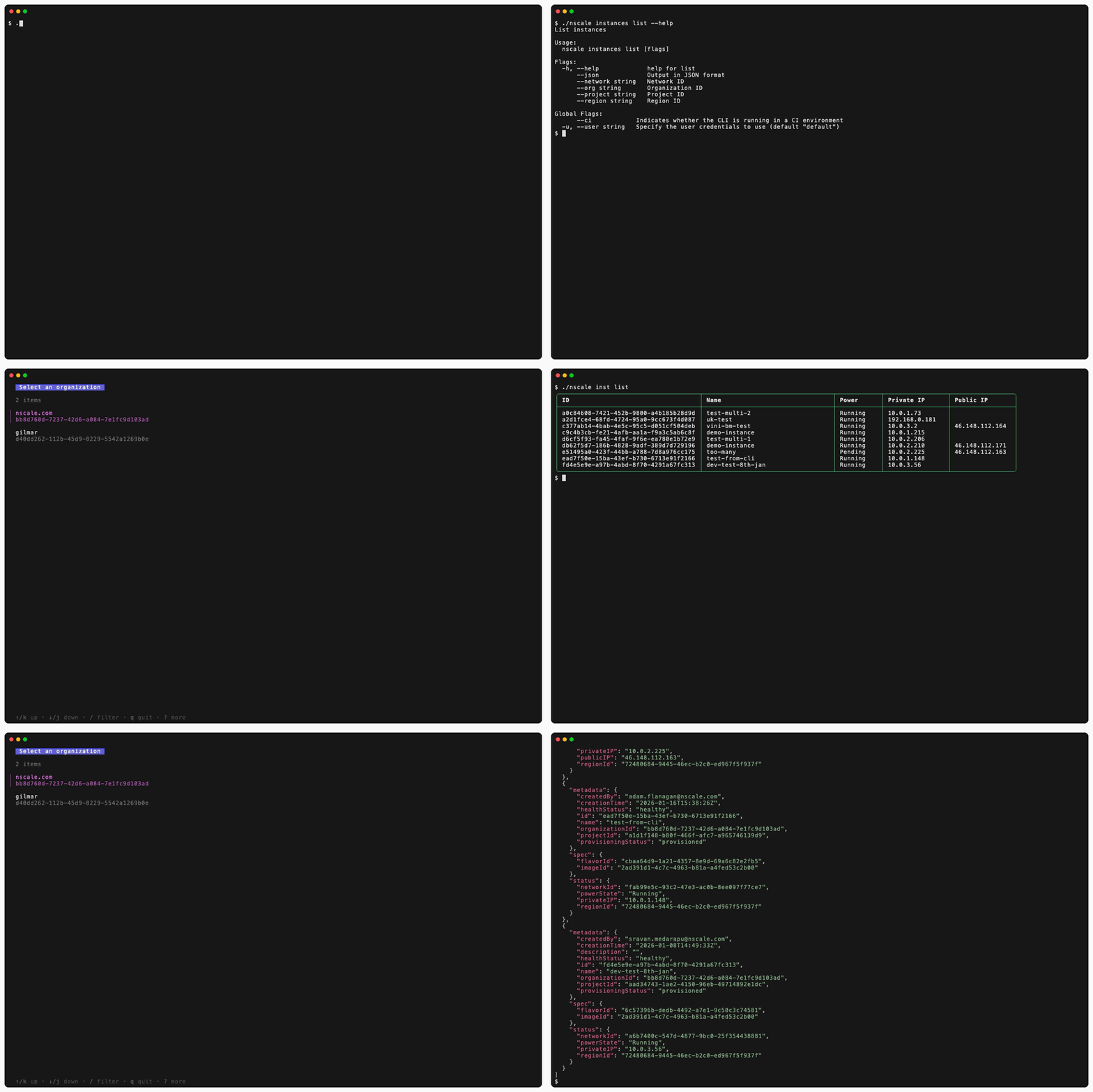
For example, `list` commands will present an organization picker if `--org` is not provided:
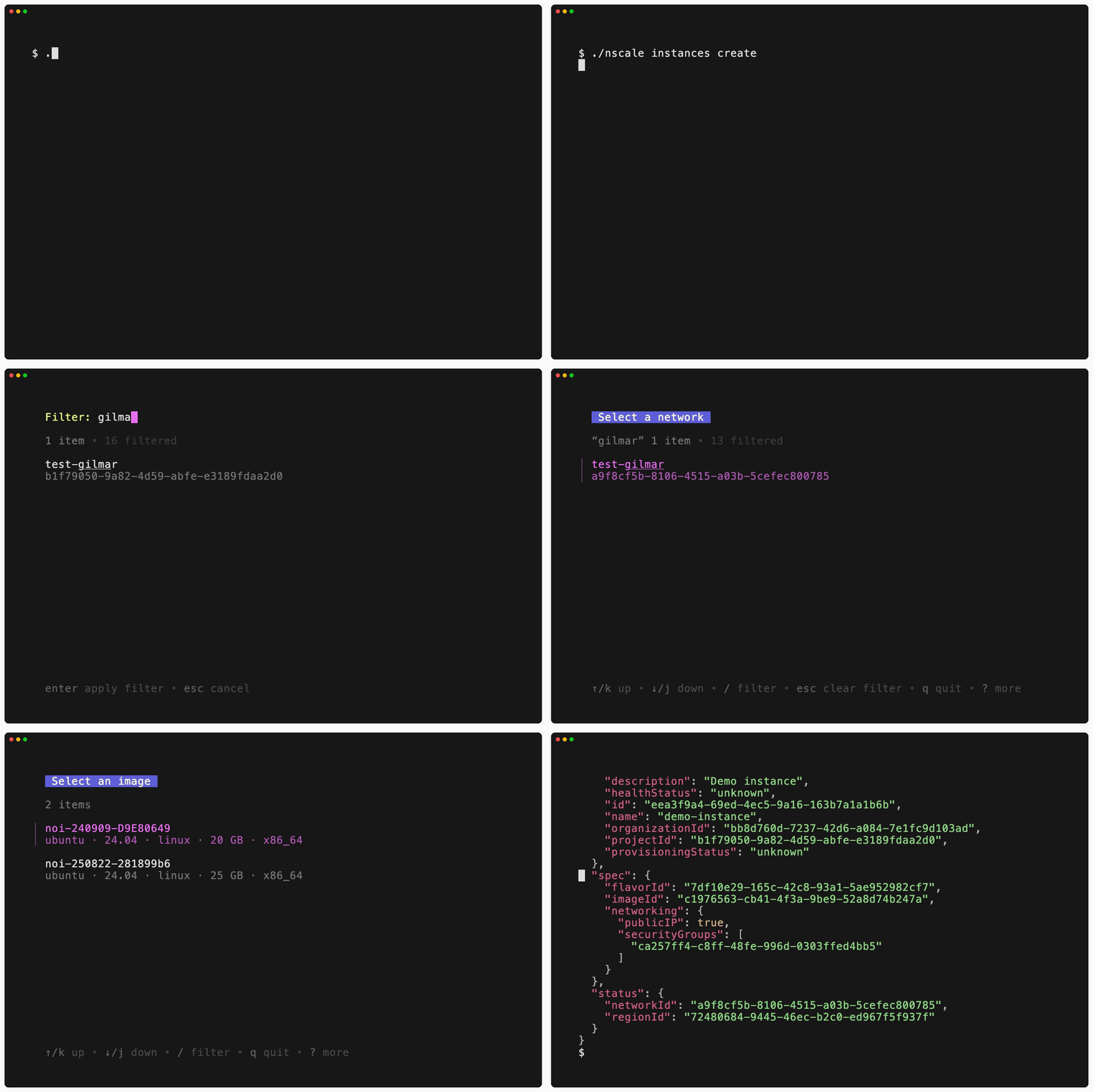
 `create` commands will prompt for each required field when no `--file` or `--stdin` input is given:
 To suppress interactive prompts (e.g. in scripts), pass `--ci` or set the `CI` environment variable. With prompts suppressed, a missing value is an error, and so is a confirmation: commands that ask before acting (most deletes and other mutations) fail unless you also pass `--yes`:
```bash theme={null}
nscale instances delete --yes --ci
```
## Shell completion
### Bash
```bash theme={null}
# Load completions for current session
source <(nscale completion bash)
# To load completions for every new session, execute once:
# Linux:
sudo nscale completion bash > /etc/bash_completion.d/nscale
# macOS:
# First, ensure bash-completion is installed
# brew install bash-completion
nscale completion bash > $(brew --prefix)/etc/bash_completion.d/nscale
# Then add to ~/.bash_profile:
# [[ -r "$(brew --prefix)/etc/profile.d/bash_completion.sh" ]] && . "$(brew --prefix)/etc/profile.d/bash_completion.sh"
```
### Zsh
```bash theme={null}
# Load completions for current session
source <(nscale completion zsh)
# To load completions for every session, execute once:
# First, check your fpath directories to find the right location:
echo $fpath
# Then, create a directory for completions if it doesn't exist:
mkdir -p ~/.zsh/completions
nscale completion zsh > ~/.zsh/completions/_nscale
# If shell completion is not already enabled in your environment,
# you will need to enable it. You can execute the following once:
echo 'fpath=(~/.zsh/completions $fpath)' >> ~/.zshrc
echo 'autoload -Uz compinit && compinit' >> ~/.zshrc
# You will need to source your ~/.zshrc or start a new shell for this setup to take effect.
source ~/.zshrc
```
### Fish
```bash theme={null}
# Load completions for current session
nscale completion fish | source
# To load completions for every session, execute once:
mkdir -p ~/.config/fish/completions
nscale completion fish > ~/.config/fish/completions/nscale.fish
```
### PowerShell
```powershell theme={null}
# Load completions for current session
nscale completion powershell | Out-String | Invoke-Expression
# To load completions for every new session, run:
nscale completion powershell > nscale.ps1
# and source this file from your PowerShell profile.
```
## Query output with `-q`
Most commands that return data accept `-q, --query`, which runs the JSON response through a [jq](https://jqlang.github.io/jq/) filter so you can extract a field or reshape the output without piping into a second process. See [Query output with `-q`](/docs/cli/query-output) for examples.
## Available commands
These pages track the latest CLI release. If a command below is not recognized, check your version with [`nscale version`](/docs/cli/version) and upgrade — `brew upgrade nscale`, or download a newer binary from the [releases page](https://github.com/nscaledev/homebrew-tap/releases).
| Command | Description |
| - | - |
| [`contexts`](/docs/cli/contexts) | Manage CLI contexts |
| [`docs`](/docs/cli/docs) | Print the CLI's own documentation |
| [`filestorage`](/docs/cli/filestorage) | Manage file storage resources |
| [`flavors`](/docs/cli/flavors) | List available compute flavors |
| [`groups`](/docs/cli/groups) | Manage groups |
| [`images`](/docs/cli/images) | Manage compute images |
| [`inferencing`](/docs/cli/inferencing) | Manage inferencing resources |
| [`instances`](/docs/cli/instances) | Manage compute instances |
| [`kubernetes`](/docs/cli/kubernetes) | Manage Kubernetes clusters, node pools, and kubeconfigs |
| [`load-balancers`](/docs/cli/load-balancers) | Manage load balancers |
| [`login`](/docs/cli/login) | Authenticate with Nscale |
| [`logout`](/docs/cli/logout) | Log out of the CLI |
| [`networks`](/docs/cli/networks) | Manage VPC networks |
| [`object-storage`](/docs/cli/object-storage) | Manage object storage endpoints, policies, and access keys |
| [`organizations`](/docs/cli/organizations) | List organizations |
| [`placements`](/docs/cli/placements) | Manage GPU placements |
| [`projects`](/docs/cli/projects) | Manage projects |
| [`regions`](/docs/cli/regions) | List available regions |
| [`reservations`](/docs/cli/reservations) | Manage GPU reservations |
| [`roles`](/docs/cli/roles) | List available roles |
| [`s3api`](/docs/cli/s3api) | Manage buckets and objects on object storage endpoints |
| [`securitygroups`](/docs/cli/securitygroups) | Manage security groups |
| [`serviceaccounts`](/docs/cli/serviceaccounts) | Manage service accounts |
| [`ssh-cas`](/docs/cli/ssh-cas) | Manage SSH certificate authorities |
| [`users`](/docs/cli/users) | Manage users |
| [`version`](/docs/cli/version) | Display the CLI version |
This documentation is built and hosted on [Mintlify](https://mintlify.com), a developer documentation platform.
To suppress interactive prompts (e.g. in scripts), pass `--ci` or set the `CI` environment variable. With prompts suppressed, a missing value is an error, and so is a confirmation: commands that ask before acting (most deletes and other mutations) fail unless you also pass `--yes`:
```bash theme={null}
nscale instances delete --yes --ci
```
## Shell completion
### Bash
```bash theme={null}
# Load completions for current session
source <(nscale completion bash)
# To load completions for every new session, execute once:
# Linux:
sudo nscale completion bash > /etc/bash_completion.d/nscale
# macOS:
# First, ensure bash-completion is installed
# brew install bash-completion
nscale completion bash > $(brew --prefix)/etc/bash_completion.d/nscale
# Then add to ~/.bash_profile:
# [[ -r "$(brew --prefix)/etc/profile.d/bash_completion.sh" ]] && . "$(brew --prefix)/etc/profile.d/bash_completion.sh"
```
### Zsh
```bash theme={null}
# Load completions for current session
source <(nscale completion zsh)
# To load completions for every session, execute once:
# First, check your fpath directories to find the right location:
echo $fpath
# Then, create a directory for completions if it doesn't exist:
mkdir -p ~/.zsh/completions
nscale completion zsh > ~/.zsh/completions/_nscale
# If shell completion is not already enabled in your environment,
# you will need to enable it. You can execute the following once:
echo 'fpath=(~/.zsh/completions $fpath)' >> ~/.zshrc
echo 'autoload -Uz compinit && compinit' >> ~/.zshrc
# You will need to source your ~/.zshrc or start a new shell for this setup to take effect.
source ~/.zshrc
```
### Fish
```bash theme={null}
# Load completions for current session
nscale completion fish | source
# To load completions for every session, execute once:
mkdir -p ~/.config/fish/completions
nscale completion fish > ~/.config/fish/completions/nscale.fish
```
### PowerShell
```powershell theme={null}
# Load completions for current session
nscale completion powershell | Out-String | Invoke-Expression
# To load completions for every new session, run:
nscale completion powershell > nscale.ps1
# and source this file from your PowerShell profile.
```
## Query output with `-q`
Most commands that return data accept `-q, --query`, which runs the JSON response through a [jq](https://jqlang.github.io/jq/) filter so you can extract a field or reshape the output without piping into a second process. See [Query output with `-q`](/docs/cli/query-output) for examples.
## Available commands
These pages track the latest CLI release. If a command below is not recognized, check your version with [`nscale version`](/docs/cli/version) and upgrade — `brew upgrade nscale`, or download a newer binary from the [releases page](https://github.com/nscaledev/homebrew-tap/releases).
| Command | Description |
| - | - |
| [`contexts`](/docs/cli/contexts) | Manage CLI contexts |
| [`docs`](/docs/cli/docs) | Print the CLI's own documentation |
| [`filestorage`](/docs/cli/filestorage) | Manage file storage resources |
| [`flavors`](/docs/cli/flavors) | List available compute flavors |
| [`groups`](/docs/cli/groups) | Manage groups |
| [`images`](/docs/cli/images) | Manage compute images |
| [`inferencing`](/docs/cli/inferencing) | Manage inferencing resources |
| [`instances`](/docs/cli/instances) | Manage compute instances |
| [`kubernetes`](/docs/cli/kubernetes) | Manage Kubernetes clusters, node pools, and kubeconfigs |
| [`load-balancers`](/docs/cli/load-balancers) | Manage load balancers |
| [`login`](/docs/cli/login) | Authenticate with Nscale |
| [`logout`](/docs/cli/logout) | Log out of the CLI |
| [`networks`](/docs/cli/networks) | Manage VPC networks |
| [`object-storage`](/docs/cli/object-storage) | Manage object storage endpoints, policies, and access keys |
| [`organizations`](/docs/cli/organizations) | List organizations |
| [`placements`](/docs/cli/placements) | Manage GPU placements |
| [`projects`](/docs/cli/projects) | Manage projects |
| [`regions`](/docs/cli/regions) | List available regions |
| [`reservations`](/docs/cli/reservations) | Manage GPU reservations |
| [`roles`](/docs/cli/roles) | List available roles |
| [`s3api`](/docs/cli/s3api) | Manage buckets and objects on object storage endpoints |
| [`securitygroups`](/docs/cli/securitygroups) | Manage security groups |
| [`serviceaccounts`](/docs/cli/serviceaccounts) | Manage service accounts |
| [`ssh-cas`](/docs/cli/ssh-cas) | Manage SSH certificate authorities |
| [`users`](/docs/cli/users) | Manage users |
| [`version`](/docs/cli/version) | Display the CLI version |
This documentation is built and hosted on [Mintlify](https://mintlify.com), a developer documentation platform.