> ## Documentation Index
> Fetch the complete documentation index at: https://docs.internal.nscale.com/llms.txt
> Use this file to discover all available pages before exploring further.
# Reservations
> Reserve exclusive, topology-aware bare-metal GPU capacity for a project, then launch workloads onto it with placements.
A reservation ring-fences one or more contiguous **NVLink domains** of bare-metal GPU capacity for a single project in a region. The capacity is exclusively yours for the life of the reservation, with no noisy neighbors and no rescheduling. It is the foundation you build [placements](/docs/compute/placements) on top of to launch servers.
**Reservations work for GB300 NVL72 and B200.** Reserved capacity is not available through the standard [instance creation](/docs/compute/create-new-instances) flow. To run on it, you reserve capacity first, then create a [placement](/docs/compute/placements) inside the reservation.
## Summary
This page walks you through working with **reservations** in the Nscale Console, the capacity model for bare-metal GPU regions. You'll learn how reservations are structured, how to reserve contiguous capacity, how to read a reservation's capacity, and how to delete one.
Use this guide if you:
* Need **guaranteed, exclusive GPU capacity** for a project rather than best-effort placement
* Are preparing to run **tightly coupled training or large-scale inference** on reserved GPU capacity
* Want a repeatable, UI-driven process for reserving and managing bare-metal GPU capacity
## How reservations fit together
Reservations sit at the top of a four-level hierarchy. Each level builds on the one above it:
| Concept | What it is |
| - | - |
| **Reservation unit** | The capacity shape you reserve. One unit is **one NVLink domain**. Hosts per unit depend on the flavour: a GB300 NVL72 unit is a rack of 18 hosts; a B200 unit is a single host. |
| **Reservation** | One or more contiguous units, ring-fenced for a project in a region. Exclusive, and fixed in size after creation. |
| **Placement** | A scheduled block of hosts carved out of a reservation, governed by a Pack or Spread policy. See [Placements](/docs/compute/placements). |
| **Server** | An individual bare-metal host launched by a placement. |
A single reservation can host **multiple placements**, for example a production training cluster and a smaller development cluster on the same reserved capacity. The total number of servers across all placements can never exceed the reservation's capacity.
**Capacity is shown in the console.** Each reservation unit reports its per-unit totals (hosts, GPUs, CPUs, and memory) in the creation wizard and via the [reservation-units API](/api-reference/reservation-units/list-reservation-units). Per-unit totals vary by flavour.
## Availability
Reservations are the capacity model for **bare-metal GPU regions**, currently GB300 NVL72 and B200. Capacity is contracted and region-specific, so a reservation can only be created in a region that has enough **contiguous** capacity to satisfy the full request.
## Key properties
Reservations behave differently from on-demand instances. Three properties matter most:
* **Exclusive.** Reserved capacity belongs to your project alone for the life of the reservation.
* **Contiguous and atomic.** A reservation is all-or-nothing. Either the exact contiguous capacity is delivered, or the request fails cleanly—fragmented capacity is never silently combined.
* **Fixed size.** A reservation can't be grown after creation. You can add or remove placements, release unused units through the API, or delete the reservation entirely.
**Naming rules:** Reservation names are **3–50 characters** of **lowercase letters, digits, and dashes**.
## Reservation lifecycle
A reservation moves through the following provisioning states:
| State | Description |
| - | - |
| **Pending** | The reservation has been accepted and is waiting for provisioning to start |
| **Provisioning** | Capacity is being claimed and the NVLink domains are being ring-fenced |
| **Provisioned** | The reservation is ready and you can create placements |
| **Error** | Provisioning failed, or a provisioned reservation's capacity became invalid. For example, the requested contiguous capacity could not be claimed |
| **Deprovisioning** | The reservation is being torn down following a delete |
| **Unknown** | The reservation's state can't be determined right now |
**Actions you can take:**
* **Create a placement** to start launching servers from the reservation
* **Delete a reservation** to release its capacity (this also deletes every placement in it)
## Reserve capacity
Reserving capacity is a three-step wizard. You can't proceed to the next step until the current one is valid.
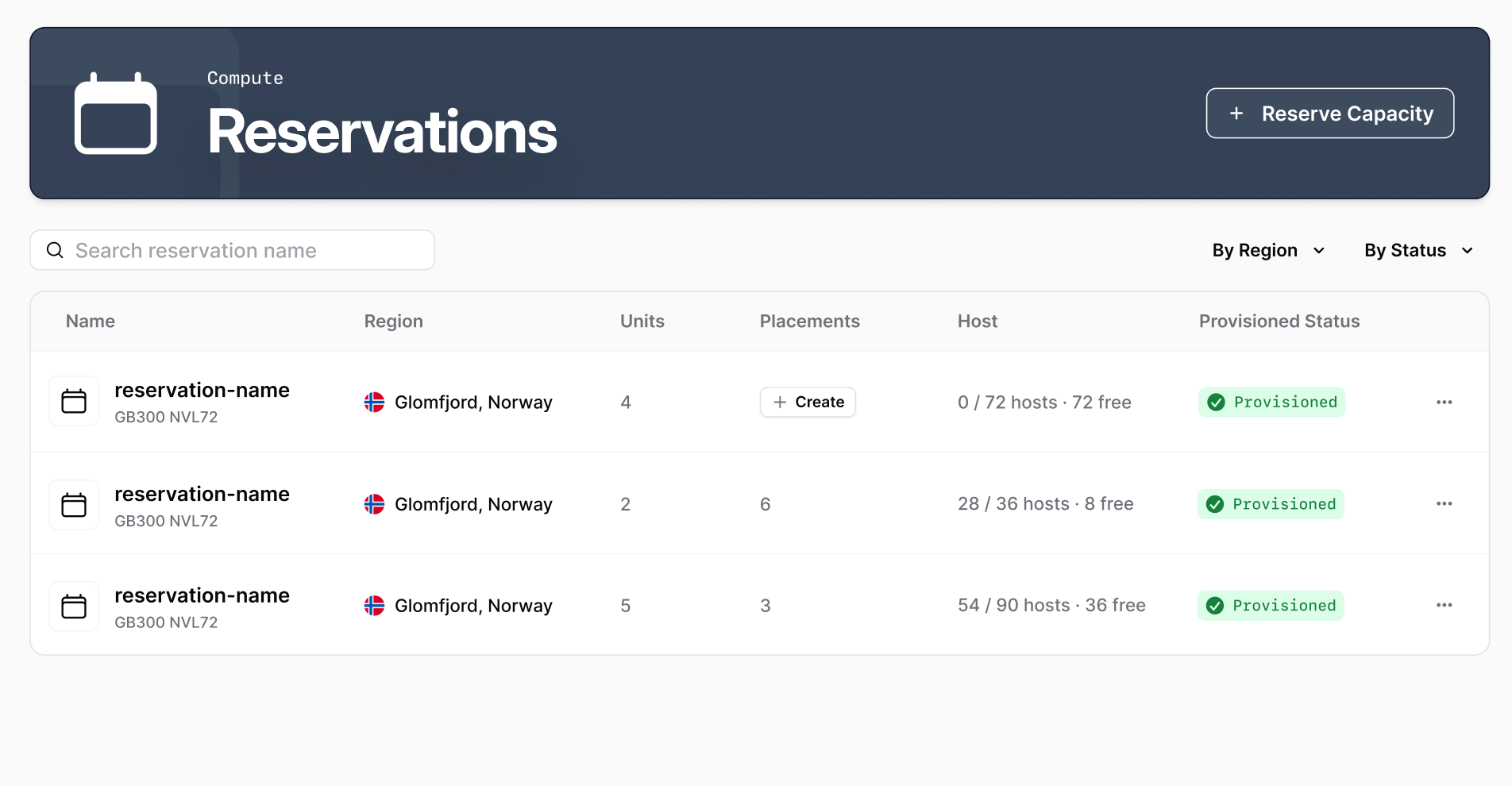
In the Console, open your project, then go to **Compute → Reservations** and click **Reserve Capacity**.
You can also start from **Reservations** in the organization sidebar, which lists reservations across every project in the organization. There, **Reserve Capacity** first asks you to choose the project to reserve in. See [Reserve capacity from the organization page](/docs/compute/topology-view#reserve-capacity-from-the-organization-page).
 Give the reservation a name under **Reservation Name**. Names are 3–50 characters of lowercase letters, digits, and dashes.
Click **Configuration** to continue.
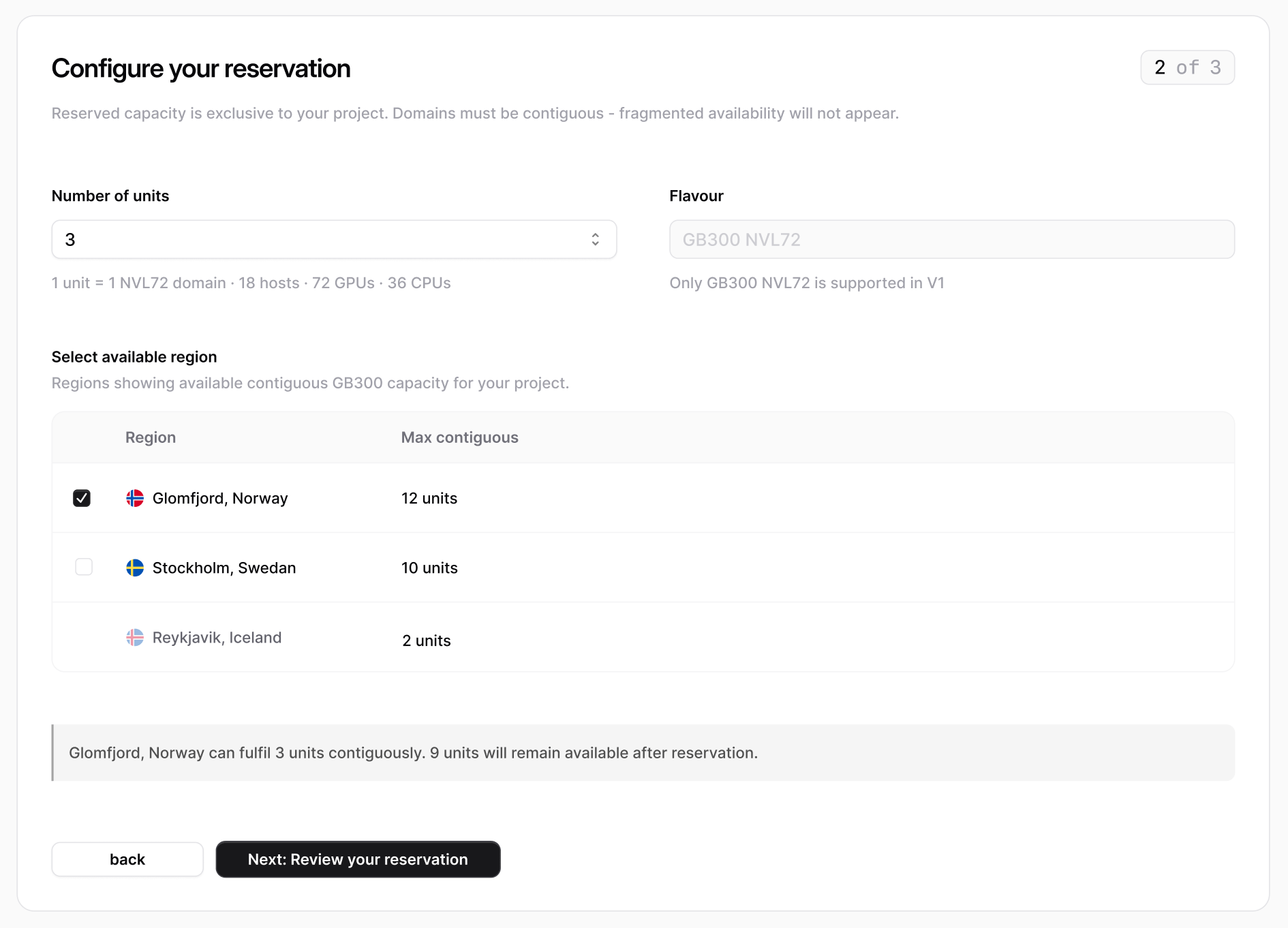
Choose how much capacity to reserve and where:
* **Flavour** selects the reserved capacity type. The per-unit breakdown updates with your choice.
* **Number of units** sets how many NVLink domains to reserve. The wizard shows the per-unit breakdown (hosts, GPUs, and CPUs) as you adjust the count.
* **Select available region** lists only the regions with enough **contiguous** capacity for your request, with the **Max contiguous** units available in each.
**Domains must be contiguous.** If no single region can satisfy the full request from contiguous capacity, the wizard shows *"Insufficient contiguous capacity"*. Fragmented capacity across a region can't be combined—reduce the unit count or choose another region.
Click **Review your reservation** to continue.
Give the reservation a name under **Reservation Name**. Names are 3–50 characters of lowercase letters, digits, and dashes.
Click **Configuration** to continue.
Choose how much capacity to reserve and where:
* **Flavour** selects the reserved capacity type. The per-unit breakdown updates with your choice.
* **Number of units** sets how many NVLink domains to reserve. The wizard shows the per-unit breakdown (hosts, GPUs, and CPUs) as you adjust the count.
* **Select available region** lists only the regions with enough **contiguous** capacity for your request, with the **Max contiguous** units available in each.
**Domains must be contiguous.** If no single region can satisfy the full request from contiguous capacity, the wizard shows *"Insufficient contiguous capacity"*. Fragmented capacity across a region can't be combined—reduce the unit count or choose another region.
Click **Review your reservation** to continue.
 Review the summary: name, unit count, GPU and CPU totals, and region. Reserved capacity is exclusive to your project and **can't be grown after creation**.
Click **Reserve Capacity** to submit. The reservation begins provisioning and appears in your reservations list.
Capacity is claimed asynchronously. A reservation starts in **Pending**, moves to **Provisioning** while capacity is claimed, and reaches **Provisioned** once all its NVLink domains are ring-fenced. That typically takes around a minute. You can create placements as soon as it is provisioned.
## View a reservation
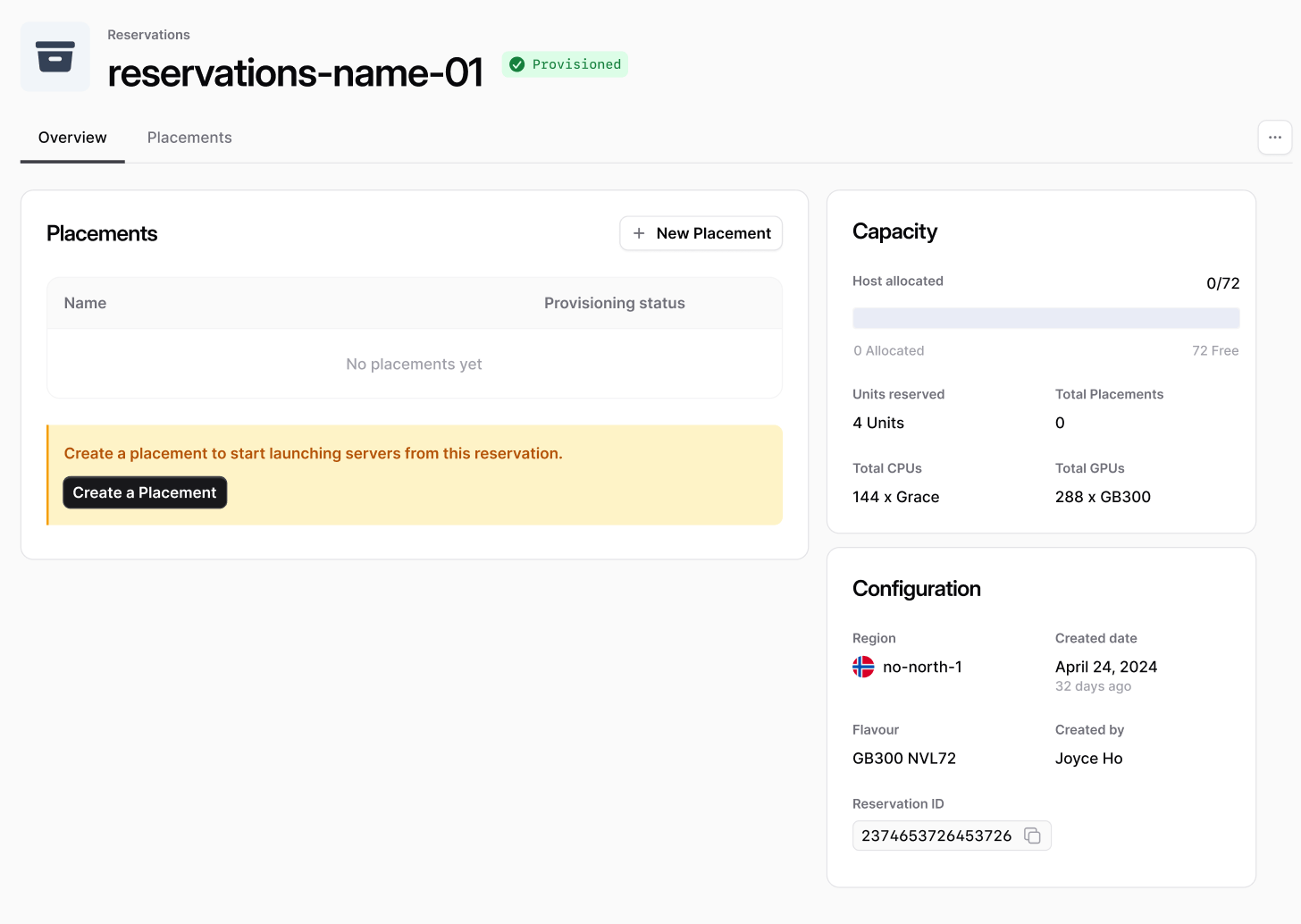
Open a reservation from the list to see its detail view. The **Overview** tab brings together everything about the reservation:
* **Placements** — the placements running in this reservation, with a shortcut to create a new one.
* **Capacity** — how many of the reservation's hosts are allocated to placements versus free, alongside units reserved, total placements, and per-host CPU and GPU counts. Click **See topology** to jump to the **Topology View** tab.
* **Configuration** — the region, creation date, flavour, who created it, and the reservation ID.
Switch to the **Placements** tab for the full list of placements in the reservation, with their host count, policy, network, status, and region.
The **Topology View** tab shows where the reservation's hosts sit across pods and NVLink domains, colored by placement. See [Topology View](/docs/compute/topology-view).
Review the summary: name, unit count, GPU and CPU totals, and region. Reserved capacity is exclusive to your project and **can't be grown after creation**.
Click **Reserve Capacity** to submit. The reservation begins provisioning and appears in your reservations list.
Capacity is claimed asynchronously. A reservation starts in **Pending**, moves to **Provisioning** while capacity is claimed, and reaches **Provisioned** once all its NVLink domains are ring-fenced. That typically takes around a minute. You can create placements as soon as it is provisioned.
## View a reservation
Open a reservation from the list to see its detail view. The **Overview** tab brings together everything about the reservation:
* **Placements** — the placements running in this reservation, with a shortcut to create a new one.
* **Capacity** — how many of the reservation's hosts are allocated to placements versus free, alongside units reserved, total placements, and per-host CPU and GPU counts. Click **See topology** to jump to the **Topology View** tab.
* **Configuration** — the region, creation date, flavour, who created it, and the reservation ID.
Switch to the **Placements** tab for the full list of placements in the reservation, with their host count, policy, network, status, and region.
The **Topology View** tab shows where the reservation's hosts sit across pods and NVLink domains, colored by placement. See [Topology View](/docs/compute/topology-view).
 **See all your reserved capacity on one map.** The **Reservations** pages for the organization and for each project also have a **Topology View** tab, which shows every reservation's hosts in one grid. It needs organization-level topology access. See [Topology View](/docs/compute/topology-view).
## Delete a reservation
Deleting a reservation releases its capacity back to the region so it can be reserved again.
**Deleting a reservation cascades.** It deletes every [placement](/docs/compute/placements) in the reservation, and each placement deletes all of its servers. This is permanent and can't be undone—any data on those servers is lost.
Go to the reservation's detail view and review its placements—deleting the reservation will remove all of them.
Open the actions menu and choose **Delete Reservation**, then confirm. The reservation, its placements, and their servers are deleted, and the reserved capacity is released.
## Next steps
* [Create a placement](/docs/compute/placements) to launch servers from your reservation.
* See where your reserved hosts sit in the [Topology View](/docs/compute/topology-view).
* Manage reservations from the command line with the [CLI](/docs/cli/overview).
* Explore the full [Reservation API reference](/api-reference/reservations/list-reservations).
This documentation is built and hosted on [Mintlify](https://mintlify.com), a developer documentation platform.
**See all your reserved capacity on one map.** The **Reservations** pages for the organization and for each project also have a **Topology View** tab, which shows every reservation's hosts in one grid. It needs organization-level topology access. See [Topology View](/docs/compute/topology-view).
## Delete a reservation
Deleting a reservation releases its capacity back to the region so it can be reserved again.
**Deleting a reservation cascades.** It deletes every [placement](/docs/compute/placements) in the reservation, and each placement deletes all of its servers. This is permanent and can't be undone—any data on those servers is lost.
Go to the reservation's detail view and review its placements—deleting the reservation will remove all of them.
Open the actions menu and choose **Delete Reservation**, then confirm. The reservation, its placements, and their servers are deleted, and the reserved capacity is released.
## Next steps
* [Create a placement](/docs/compute/placements) to launch servers from your reservation.
* See where your reserved hosts sit in the [Topology View](/docs/compute/topology-view).
* Manage reservations from the command line with the [CLI](/docs/cli/overview).
* Explore the full [Reservation API reference](/api-reference/reservations/list-reservations).
This documentation is built and hosted on [Mintlify](https://mintlify.com), a developer documentation platform.