> ## Documentation Index
> Fetch the complete documentation index at: https://docs.internal.nscale.com/llms.txt
> Use this file to discover all available pages before exploring further.
# Filesystem
Filesystem is shared persistent NFS storage that can be mounted by multiple instances and clusters simultaneously. It is region-bound and can be attached to one or more VPCs in its region. Use it when you need shared, persistent storage accessible from more than one compute resource. You can also define snapshot policies to create recurring point-in-time snapshots and retain a defined number of them.
**Prerequisites:** You need a [VPC network](/docs/network/vpc-networks) and at least one [instance](/docs/compute/create-new-instances) or [cluster](/docs/platform-services/managed-kubernetes) in the same VPC before you can use the filesystem.
## Summary
This page explains how to create and use **Filesystem** storage in the nscale console.
By following the steps, you will:
* Create a **project-scoped**, **region-bound** shared filesystem
* Attach the filesystem to one or more **networks** so instances and clusters in those networks can share it
* Configure root access, extended POSIX ACL support, and access-time (`atime`) update behavior
* Define **snapshot policies** to automate point-in-time filesystem snapshots
* Retrieve the **NFS mount command** and use it to mount the filesystem from your compute resources
**Who should use this:** console users who need shared, persistent storage that can be mounted by more than one instance or cluster (within the attached networks).
## Availability
This feature is currently only available for the reserved cloud service environment.
**Subnet sizing requirement:** Your VPC must have at least a **/24 CIDR block** (256 IP addresses). Make sure your subnet is sized appropriately before creating a filesystem.
**Multiple network attachments:** A filesystem can be attached to more than one VPC in its region. Each attachment gets its own mount source. To stop a VPC from using the filesystem, remove it from the filesystem's **Associated VPCs**.
## Requirements
* Permissions to **create and manage storage resources** in the console
* A target **region** selected for the storage resource (Filesystem is region-bound)
* One or more **networks** in the same region to attach the storage to
* At least one **instance or cluster** in the same network where you will mount the filesystem
If **no VPC** is selected, the **mount command** is **not** provided. You must select a VPC to get the mount command.
## Filesystem lifecycle
| Action | Details |
| - | - |
| **Create** | Provide a name, capacity, and select the VPCs to attach to |
| **Resize** | Increase the filesystem capacity at any time from the console |
| **NFS settings** | Configure root squash, extended POSIX ACLs, and `atime` updates |
| **Snapshot policy** | Configure recurring filesystem snapshots and retention |
| **Mount** | Use the NFS mount command from any instance/cluster in an attached VPC |
| **Detach** | Remove a VPC from the filesystem's **Associated VPCs** |
| **Delete** | Permanently remove the filesystem and all data stored on it |
**Deleting a filesystem permanently removes all data and associated snapshots.** This action cannot be undone. Ensure you have backups or have migrated data before deleting.
## NFS settings
Use the NFS settings when creating or editing a filesystem to control root access, extended POSIX ACL support, and read-driven access-time updates.
| Console setting | API field | Behavior |
| - | - | - |
| **Root squash** | `spec.storageType.NFS.rootSquash` | Maps requests from the root user on an NFS client to an unprivileged user when enabled |
| **POSIX ACLs** | `spec.storageType.NFS.posixAcl` | Enables extended POSIX ACL support when set to `true` |
| **`atime` update interval (seconds)** | `spec.storageType.NFS.atimeUpdateIntervalSeconds` | Sets the minimum age of the existing `atime` before a read updates it |
Set **`atime` update interval (seconds)** to `0` to disable read-driven `atime` updates. A positive whole number updates `atime` during a read only when the existing value is older than the configured number of seconds. The accepted range is `0` through `86,399,999,999,999` seconds.
Enabling POSIX ACLs may reduce metadata performance. Extended POSIX ACLs must be managed over NFSv3. Disabling this option does not remove existing ACLs; they may remain enforced.
## Snapshot policies
Snapshot policies automate filesystem snapshots on a recurring schedule. Nscale enables **Default Snapshot Protection** by default, and you can add up to **4** snapshot policies with custom schedules and retention.
Default Snapshot Protection is platform-managed. It runs daily at `04:00Z`, keeps the last `7` snapshots, and is controlled separately from user-managed snapshot policies.
Use snapshot policies when you need recurring point-in-time protection for filesystem data. Deleting a filesystem is permanent and deletes its associated snapshots.
### Schedule options
All snapshot policy times are in UTC and use `HH:MMZ` format, for example `04:00Z`.
| Cadence | Required fields | Notes |
| - | - | - |
| **Hourly** | `interval: hourly` | Do not set `timeOfDay`, `dayOfWeek`, or `dayOfMonth` |
| **Daily** | `interval: daily`, `timeOfDay` | Runs once per day at the specified UTC time |
| **Weekly** | `interval: weekly`, `dayOfWeek`, `timeOfDay` | `dayOfWeek` must be `monday` through `sunday` |
| **Monthly** | `interval: monthly`, `dayOfMonth`, `timeOfDay` | `dayOfMonth` must be between `1` and `28` |
The retention value, `keep`, is the number of snapshots to retain and must be at least `1`.
When updating policies through the API, policy names are identity keys. Changing a policy name creates a new policy and removes the old one.
### API behavior
Default Snapshot Protection is managed with `spec.defaultSnapshotProtectionEnabled`. User-managed snapshot policies are managed inline on the filesystem resource as `spec.snapshotPolicies`.
| Operation | `defaultSnapshotProtectionEnabled` value | Result |
| - | - | - |
| **Create** | Omitted | Enables Default Snapshot Protection |
| **Create** | `false` | Creates the filesystem without Default Snapshot Protection |
| **Update** | Omitted | Preserves the current Default Snapshot Protection setting |
| **Update** | `true` or `false` | Enables or disables Default Snapshot Protection |
| **Create/Update** | `null` | Invalid request |
| Operation | `snapshotPolicies` value | Result |
| - | - | - |
| **Create** | Omitted or `[]` | Stores no user-managed snapshot policies |
| **Create** | Non-empty list | Stores the supplied user-managed policies exactly |
| **Update** | Omitted | Preserves existing user-managed policies |
| **Update** | `[]` | Clears all user-managed policies |
| **Update** | Non-empty list | Replaces the full user-managed policy list |
Public API reads return user-managed snapshot policies only. The platform-managed Default Snapshot Protection policy is not included in `spec.snapshotPolicies` or `status.snapshotPolicies`.
Omit `snapshotPolicies` when you do not want to change user-managed policies. Do not send `null`.
Do not use `system-default` as a user-managed policy name while Default Snapshot Protection is enabled. That name is reserved for Nscale's platform-managed default protection.
Example user-managed policy list:
```json theme={null}
{
"snapshotPolicies": [
{
"name": "daily",
"schedule": {
"interval": "daily",
"timeOfDay": "04:00Z"
},
"retention": {
"keep": 7
}
},
{
"name": "weekly",
"schedule": {
"interval": "weekly",
"dayOfWeek": "monday",
"timeOfDay": "02:30Z"
},
"retention": {
"keep": 4
}
}
]
}
```
## Step-by-step
1. **Choose the project and region**
* In the Console, select the **project** you want to use under **All Projects**
* Select the **region** where you want the filesystem to live
2. **Create (or select) the network you will attach storage to**
* Create a new network, or select an existing one in the same region
* Confirm the network is in the **same region** as the storage you plan to create
* You can attach the filesystem to more than one network in the same region
3. **Create the Filesystem**
* Go to **Storage → Filesystem** in the console
* Provide the required values (for example: name and capacity)
* Configure **Root squash**, **POSIX ACLs**, and **`atime` update interval (seconds)** under the NFS settings
* Create the filesystem
* You should see the filesystem appear in the resource list, and its status move to a "ready/available" state
4. **Configure snapshot policies (optional)**
* Use the **Snapshot policies** section when creating or editing the filesystem
* Review Default Snapshot Protection, which is enabled by default
* Add user-managed policies if you need additional cadences, UTC schedules, or retention rules
* Save the filesystem and verify each user-managed policy reaches a ready/provisioned state
5. **Get the NFS mount command**
* In the filesystem details, locate the action or section to Mount your filesystem
* Copy the **NFS mount command**
* You should see a mount command that you can run from a Linux host in the attached network
6. **Mount from your compute (instance or cluster)**
* From a target instance (or nodes in your cluster) that are connected to the same network:
* Run the mount command you copied
* Confirm the mount worked by verifying the mount point is accessible and read/write as expected
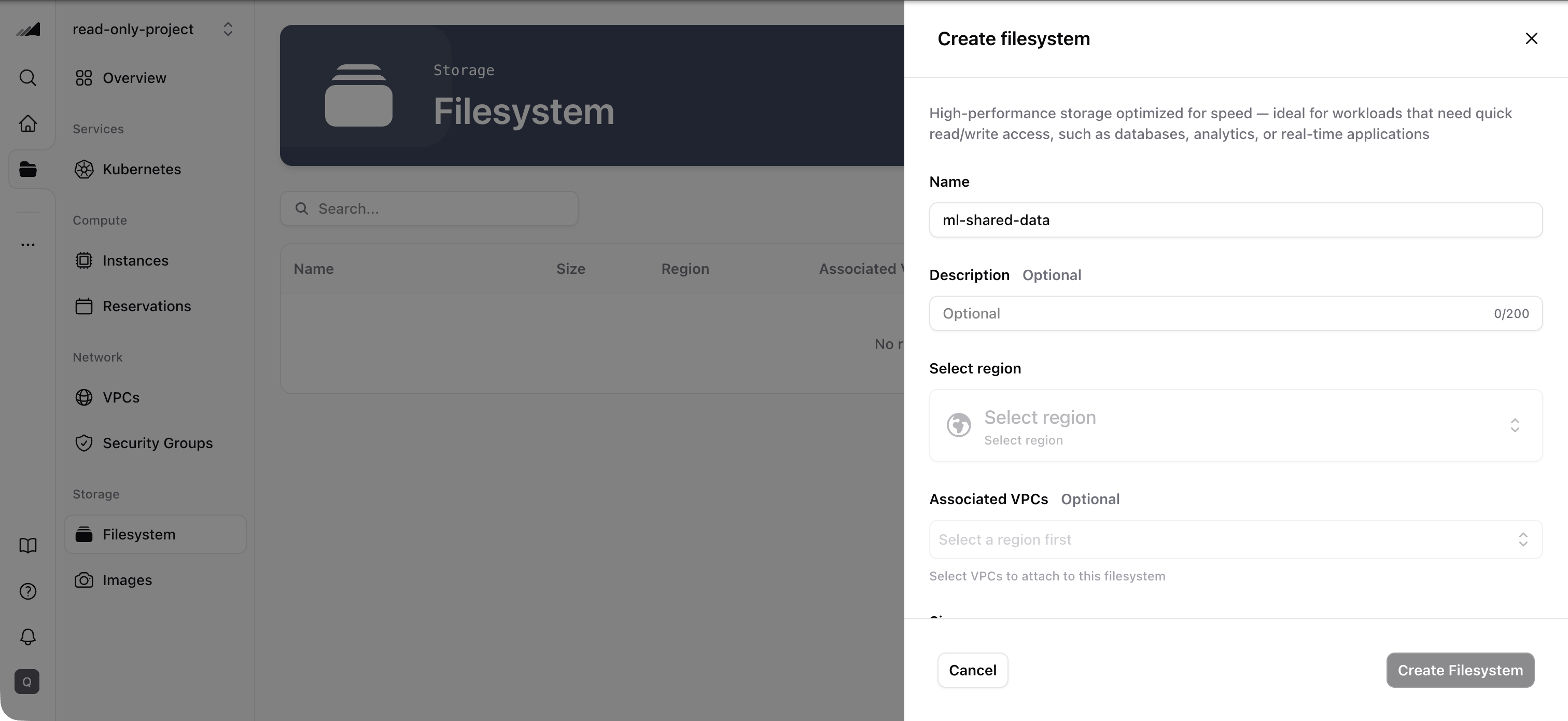 ## View filesystem details
Click any filesystem in the list to view its detail page. The detail page includes:
* **Overview** — filesystem status, capacity, attached VPCs, and mount command
* **Configuration** — capacity, root squash, POSIX ACL, and `atime` update interval
* **Instances** — all instances in the attached VPCs that can access this filesystem, with search filtering
* **Snapshot policies** — schedules, retention, and provisioning state for each policy
The **Instances** tab helps you see at a glance which compute resources are using the filesystem.
## Attachment status and mount options
Each filesystem attachment reports its provisioning status. The status reflects the actual observed state of the attachment, not just the desired configuration:
| Status | Description |
| - | - |
| **Provisioning** | The attachment is being set up |
| **Provisioned** | The attachment is active and ready for use |
| **Deprovisioning** | The attachment is being removed |
| **Error** | Something went wrong during attachment provisioning |
When an attachment is provisioned, the API also returns **mount options** — specifically a `remoteports` field containing the IP range of the NFS storage endpoints. You can use this range for client-side NFS mount tuning when you need to distribute NFS traffic across multiple storage IPs for better throughput and resilience.
Mount options are returned in the API response under `mountOptions` on each attachment. For most use cases, the standard mount command shown in the console is sufficient. Use the `remoteports` value only when you need advanced NFS client configuration.
## Quotas
To check your current filesystem quota, go to the **Resource Usage** section on the **Dashboard**. The dashboard shows your filesystem storage usage (e.g., 1 GiB / 1 TiB) alongside GPU, server, cluster, and network quotas.
## Common issues / troubleshooting
1. **Symptom:** You can't attach the filesystem to the selected network
**Likely cause:** The network is in a different region from the filesystem.
**Fix:** Check the filesystem's region, and choose a network in the same region.
2. **Symptom:** The mount command fails from your instance/cluster
**Likely cause:** The instance/cluster is not in the attached network, or network access rules prevent NFS connectivity.
**Fix:** Confirm the compute resource is connected to the same network the filesystem is attached to. Then verify network/security rules permit NFS traffic (exact ports/rules depend on your setup).
3. **Symptom:** No mount command is shown in the filesystem details
**Likely cause:** No VPC has been selected for the filesystem.
**Fix:** Edit the filesystem and select a VPC. The mount command will appear once a VPC is attached.
4. **Symptom:** A snapshot policy is rejected or does not provision
**Likely cause:** The policy name, schedule, or retention does not match the validation rules. Common issues include using a non-UTC time, setting `timeOfDay` on an hourly policy, omitting `dayOfWeek` on a weekly policy, or using a monthly `dayOfMonth` after `28`.
**Fix:** Update the policy so the schedule fields match its cadence and `keep` is at least `1`.
5. **Symptom:** Existing snapshot policies changed after an API update
**Likely cause:** API updates replace the full `snapshotPolicies` list when a non-empty list is supplied, or clear all user-managed policies when `[]` is supplied.
**Fix:** Include every policy you want to keep in the update request. Omit `snapshotPolicies` if you only want to update other filesystem fields.
6. **Symptom:** A policy named `system-default` is rejected
**Likely cause:** Default Snapshot Protection is enabled or is still cleaning up, so `system-default` is reserved for the platform-managed policy.
**Fix:** Use a different policy name, or wait until Default Snapshot Protection has been disabled and cleanup has completed before claiming that name.
7. **Symptom:** POSIX ACL tools do not work on the mounted filesystem
**Likely cause:** Extended POSIX ACLs are disabled, or you mounted the filesystem using NFSv4.1. NFSv3 is the supported management path for extended POSIX ACLs.
**Fix:** Enable **POSIX ACLs** and mount the filesystem using NFSv3 before creating or modifying extended ACLs.
8. **Symptom:** Existing ACLs remain enforced after POSIX ACL is disabled
**Likely cause:** Disabling POSIX ACL support does not delete existing ACL metadata.
**Fix:** Re-enable **POSIX ACLs**, manage the existing ACLs over NFSv3, and then disable the setting again if required.
9. **Symptom:** File access does not update `atime`
**Likely cause:** The interval is `0`, which disables read-driven updates, or the current `atime` is not yet older than a configured positive interval.
**Fix:** Set a positive **`atime` update interval (seconds)** and wait until the existing `atime` is older than that interval before testing another read.
***
## Related resources
Create the network your filesystem attaches to
Mount the filesystem from your compute instances
Access shared storage from your Kubernetes clusters
Provision and mount filesystems from NKS pods with the CSI driver
Manage filesystems programmatically via the Networking and Storage API
This documentation is built and hosted on [Mintlify](https://mintlify.com), a developer documentation platform.
## View filesystem details
Click any filesystem in the list to view its detail page. The detail page includes:
* **Overview** — filesystem status, capacity, attached VPCs, and mount command
* **Configuration** — capacity, root squash, POSIX ACL, and `atime` update interval
* **Instances** — all instances in the attached VPCs that can access this filesystem, with search filtering
* **Snapshot policies** — schedules, retention, and provisioning state for each policy
The **Instances** tab helps you see at a glance which compute resources are using the filesystem.
## Attachment status and mount options
Each filesystem attachment reports its provisioning status. The status reflects the actual observed state of the attachment, not just the desired configuration:
| Status | Description |
| - | - |
| **Provisioning** | The attachment is being set up |
| **Provisioned** | The attachment is active and ready for use |
| **Deprovisioning** | The attachment is being removed |
| **Error** | Something went wrong during attachment provisioning |
When an attachment is provisioned, the API also returns **mount options** — specifically a `remoteports` field containing the IP range of the NFS storage endpoints. You can use this range for client-side NFS mount tuning when you need to distribute NFS traffic across multiple storage IPs for better throughput and resilience.
Mount options are returned in the API response under `mountOptions` on each attachment. For most use cases, the standard mount command shown in the console is sufficient. Use the `remoteports` value only when you need advanced NFS client configuration.
## Quotas
To check your current filesystem quota, go to the **Resource Usage** section on the **Dashboard**. The dashboard shows your filesystem storage usage (e.g., 1 GiB / 1 TiB) alongside GPU, server, cluster, and network quotas.
## Common issues / troubleshooting
1. **Symptom:** You can't attach the filesystem to the selected network
**Likely cause:** The network is in a different region from the filesystem.
**Fix:** Check the filesystem's region, and choose a network in the same region.
2. **Symptom:** The mount command fails from your instance/cluster
**Likely cause:** The instance/cluster is not in the attached network, or network access rules prevent NFS connectivity.
**Fix:** Confirm the compute resource is connected to the same network the filesystem is attached to. Then verify network/security rules permit NFS traffic (exact ports/rules depend on your setup).
3. **Symptom:** No mount command is shown in the filesystem details
**Likely cause:** No VPC has been selected for the filesystem.
**Fix:** Edit the filesystem and select a VPC. The mount command will appear once a VPC is attached.
4. **Symptom:** A snapshot policy is rejected or does not provision
**Likely cause:** The policy name, schedule, or retention does not match the validation rules. Common issues include using a non-UTC time, setting `timeOfDay` on an hourly policy, omitting `dayOfWeek` on a weekly policy, or using a monthly `dayOfMonth` after `28`.
**Fix:** Update the policy so the schedule fields match its cadence and `keep` is at least `1`.
5. **Symptom:** Existing snapshot policies changed after an API update
**Likely cause:** API updates replace the full `snapshotPolicies` list when a non-empty list is supplied, or clear all user-managed policies when `[]` is supplied.
**Fix:** Include every policy you want to keep in the update request. Omit `snapshotPolicies` if you only want to update other filesystem fields.
6. **Symptom:** A policy named `system-default` is rejected
**Likely cause:** Default Snapshot Protection is enabled or is still cleaning up, so `system-default` is reserved for the platform-managed policy.
**Fix:** Use a different policy name, or wait until Default Snapshot Protection has been disabled and cleanup has completed before claiming that name.
7. **Symptom:** POSIX ACL tools do not work on the mounted filesystem
**Likely cause:** Extended POSIX ACLs are disabled, or you mounted the filesystem using NFSv4.1. NFSv3 is the supported management path for extended POSIX ACLs.
**Fix:** Enable **POSIX ACLs** and mount the filesystem using NFSv3 before creating or modifying extended ACLs.
8. **Symptom:** Existing ACLs remain enforced after POSIX ACL is disabled
**Likely cause:** Disabling POSIX ACL support does not delete existing ACL metadata.
**Fix:** Re-enable **POSIX ACLs**, manage the existing ACLs over NFSv3, and then disable the setting again if required.
9. **Symptom:** File access does not update `atime`
**Likely cause:** The interval is `0`, which disables read-driven updates, or the current `atime` is not yet older than a configured positive interval.
**Fix:** Set a positive **`atime` update interval (seconds)** and wait until the existing `atime` is older than that interval before testing another read.
***
## Related resources
Create the network your filesystem attaches to
Mount the filesystem from your compute instances
Access shared storage from your Kubernetes clusters
Provision and mount filesystems from NKS pods with the CSI driver
Manage filesystems programmatically via the Networking and Storage API
This documentation is built and hosted on [Mintlify](https://mintlify.com), a developer documentation platform.