> ## Documentation Index
> Fetch the complete documentation index at: https://docs.internal.nscale.com/llms.txt
> Use this file to discover all available pages before exploring further.
# Object Storage
Object Storage provides S3-compatible storage for buckets and objects. It is project-scoped and region-bound. Use it when you need an S3 endpoint for datasets, application assets, backups, artifacts, or other object-based workloads.
**Prerequisites:** You need an existing project, an available region, and permissions to create object storage endpoints and access keys before you can use Object Storage.
## Summary
This page explains how to create and use **Object Storage** in the Nscale Console.
By following the steps, you will:
* Create a **project-scoped**, **region-bound** S3-compatible endpoint
* Find and filter Object Storage endpoints by **region** and **status**
* Manage endpoint **access keys** and **identity policies** from the endpoint details page
* Retrieve the endpoint URL after provisioning completes and use it with an S3-compatible client
**Who should use this:** console users who need S3-compatible object storage that can be accessed from applications, instances, clusters, CI jobs, or data tooling.
## Availability
This feature is currently only available for the reserved cloud service environment.
**One endpoint per project and region:** Each project can have only one Object Storage endpoint in a given region. If a project already has an endpoint in that region, choose another region or delete the existing endpoint first.
**Access key secrets are shown once:** The secret access key is only returned when the access key is created. Copy it immediately and store it securely. If you lose it, create a new access key and delete the old one.
## Requirements
* Permissions to **create and manage object storage resources**
* A target **project** and **region** selected for the object storage endpoint
* An **identity policy** that allows the S3 actions your workload needs
* An S3-compatible client or SDK, such as the AWS CLI
The endpoint URL is available only after the endpoint finishes provisioning.
## Object Storage Lifecycle
| Action | Details |
| - | - |
| **Create endpoint** | Provide a name, project, and region |
| **Configure identity policies** | Use the `system-default-admin` policy or add custom S3 policy documents for least-privilege access |
| **Create access key** | Create credentials tied to an identity policy. The secret is returned only once |
| **Use S3 client** | Use the endpoint URL with your access key ID and secret to create buckets and manage objects |
| **Delete access key** | Revoke a credential without deleting the endpoint or stored objects |
| **Delete endpoint** | Permanently remove the endpoint and the object storage resources associated with it |
**Deleting an Object Storage endpoint permanently removes the endpoint and associated buckets/objects.** This action cannot be undone. Ensure data has been backed up or migrated before deleting.
## Identity Policies
Identity policies define which S3 actions an access key can perform. Policies use AWS-style JSON policy documents with `Version`, `Statement`, `Effect`, `Action`, and `Resource` fields.
If you create an endpoint without custom policies, Object Storage seeds a default `system-default-admin` policy that allows `s3:*` on all resources. For production workloads, create narrower policies for each workload or team.
In the console, identity policies are managed from the **Identity Policies** tab. New policies are added by providing a policy name and uploading a `.json` policy document.
Example read/write policy for all buckets:
```json theme={null}
{
"Version": "2012-10-17",
"Statement": [
{
"Effect": "Allow",
"Action": [
"s3:ListBucket",
"s3:GetObject",
"s3:PutObject"
],
"Resource": "*"
}
]
}
```
## S3 API Compatibility
Object Storage is S3-compatible for common bucket and object workflows, but it does not implement every AWS S3 feature. See the unsupported features below:
| Unsupported feature | Description |
| - | - |
| **Public (anonymous) access** | Objects and buckets can't be made publicly readable. Setting a `public-read` ACL on an object or bucket does not grant anonymous access, and unauthenticated requests are denied. To share objects without distributing credentials, use [pre-signed URLs](#share-objects-with-pre-signed-urls). |
| **Bucket CORS configuration** | Bucket-level CORS rules are not supported through the S3 API. Requests such as `PutBucketCors` return `NotImplemented`. |
| **IAM API** | AWS IAM-compatible APIs for users, roles, and policies are not available on the Object Storage endpoint. Manage Object Storage access through identity policies and access keys. |
| **Lifecycle rules** | S3 lifecycle configuration is not supported through `PutBucketLifecycleConfiguration`. This includes expiration rules, aborting incomplete multipart uploads, and noncurrent version cleanup. Implement lifecycle cleanup in your application or automation. |
| **Bucket metrics configuration** | S3 bucket metrics configuration APIs are not supported. |
| **Bucket replication** | S3 replication configuration, including cross-region replication and same-region replication, is not supported through `PutBucketReplication` or related APIs. |
| **SSE-C** | Server-side encryption with customer-provided keys using `x-amz-server-side-encryption-customer-*` headers is not supported. |
| **Signature Version 2** | Legacy SigV2 authentication is not supported. Use Signature Version 4 for all S3 requests. |
| **Static website hosting** | S3 static website hosting configuration is not supported. Serve static content through an application, web server, or CDN layer instead. |
| **Suspend versioning** | Enabling bucket versioning is supported, but suspending versioning after it has been enabled is not supported. |
## Step-by-Step
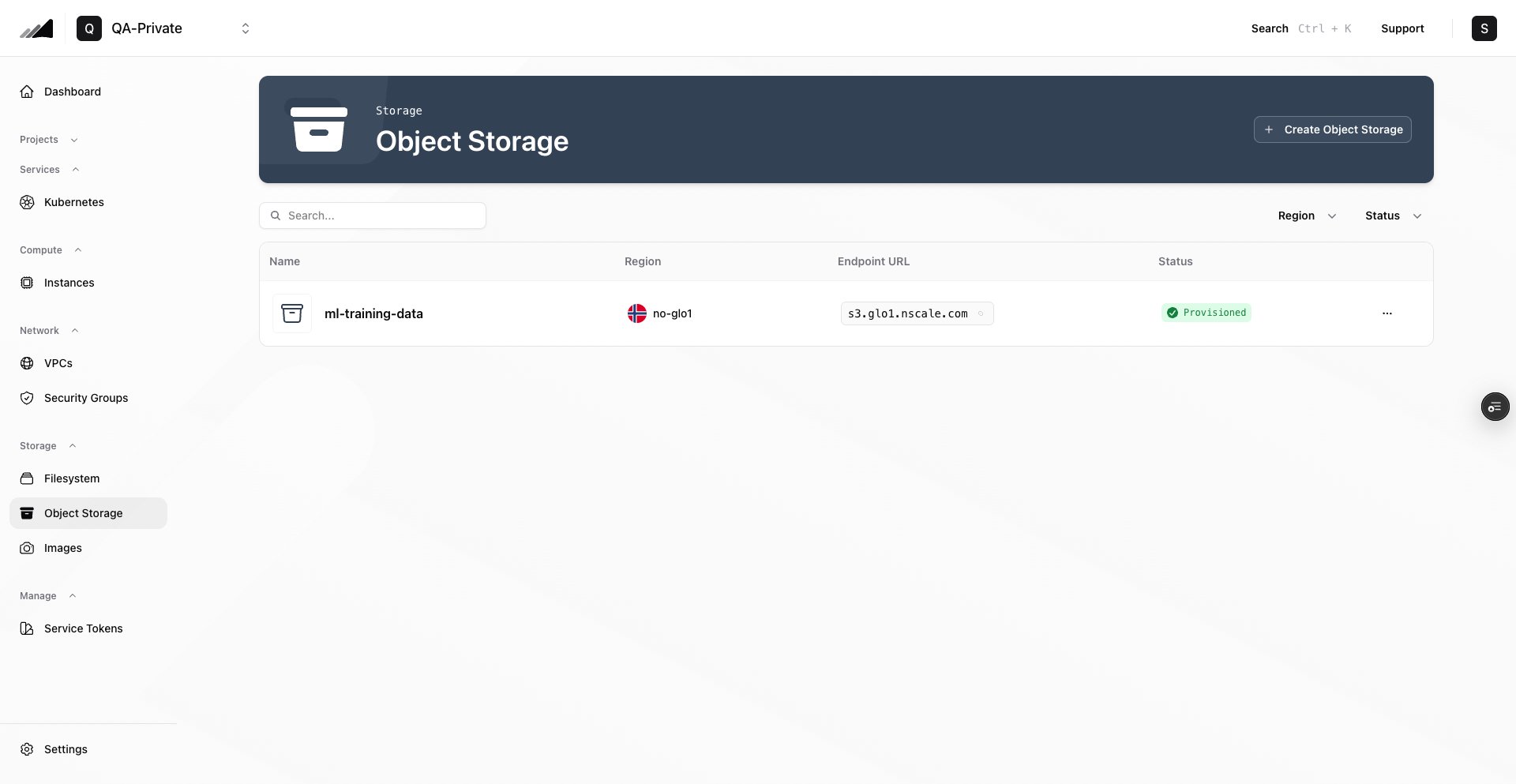
1. **Open Object Storage**
* In the Console, open your project, then go to **Storage → Object Storage**
* Use the search field to find an existing endpoint by name
* Use the **Region** and **Status** filters to narrow the list
 2. **Create the Object Storage endpoint**
* Click **Create Object Storage**
* Enter an **Object Storage Name**
* Select the **Project**
* Select an available **Region** from the region picker
* Click **Create Object Storage** and wait for the endpoint to reach **Provisioned**
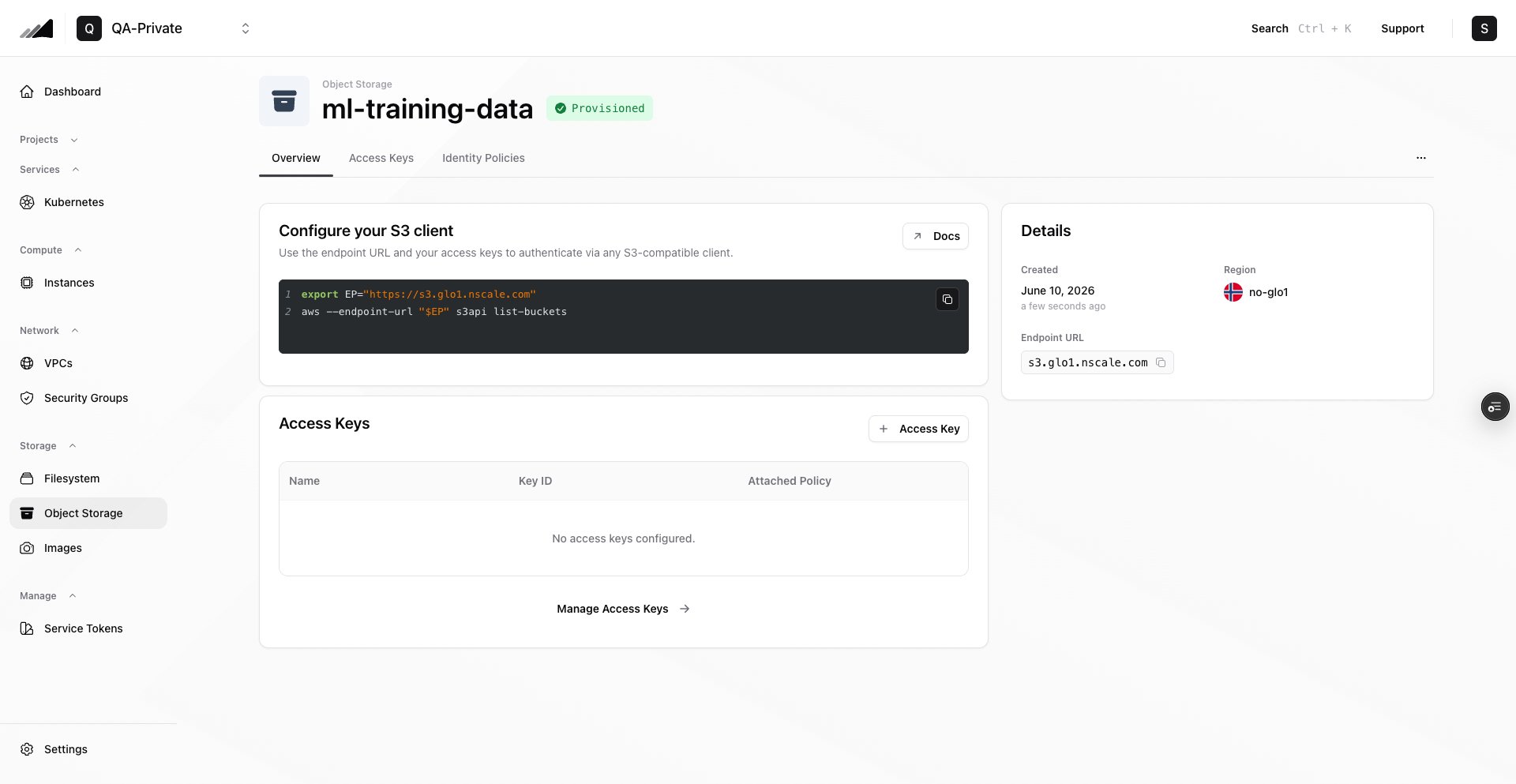
3. **Open the endpoint details page**
* Select the endpoint from the Object Storage list
* Confirm the header shows the endpoint name and a **Provisioned** status badge
* Use the **Overview**, **Access Keys**, and **Identity Policies** tabs to manage the endpoint
2. **Create the Object Storage endpoint**
* Click **Create Object Storage**
* Enter an **Object Storage Name**
* Select the **Project**
* Select an available **Region** from the region picker
* Click **Create Object Storage** and wait for the endpoint to reach **Provisioned**
3. **Open the endpoint details page**
* Select the endpoint from the Object Storage list
* Confirm the header shows the endpoint name and a **Provisioned** status badge
* Use the **Overview**, **Access Keys**, and **Identity Policies** tabs to manage the endpoint
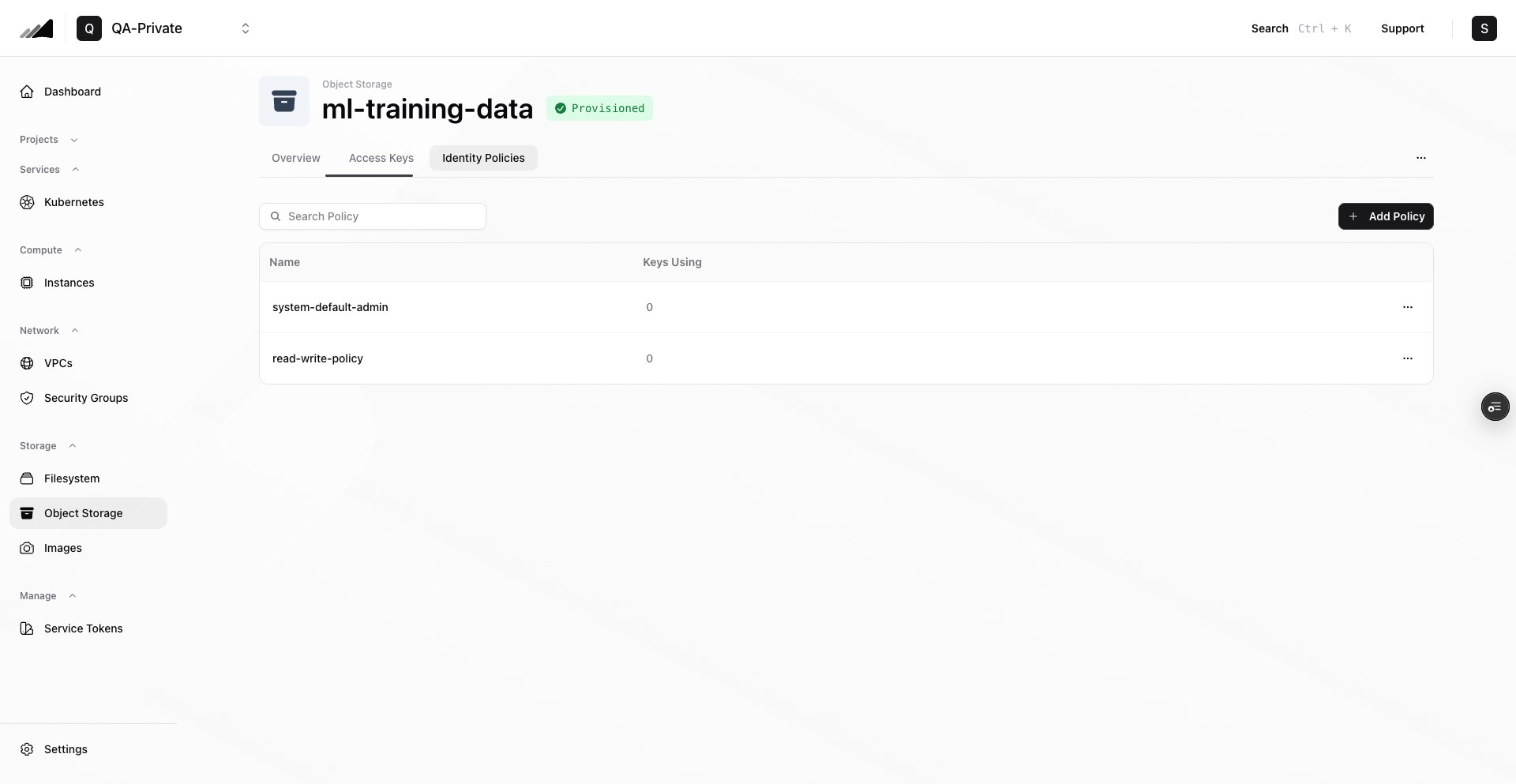
 4. **Add or review identity policies**
* Open the **Identity Policies** tab
* To add a policy, click **Add Policy**
* Provide a **Policy Name** and upload a `.json` custom policy document
* Click **Add Policy**
4. **Add or review identity policies**
* Open the **Identity Policies** tab
* To add a policy, click **Add Policy**
* Provide a **Policy Name** and upload a `.json` custom policy document
* Click **Add Policy**
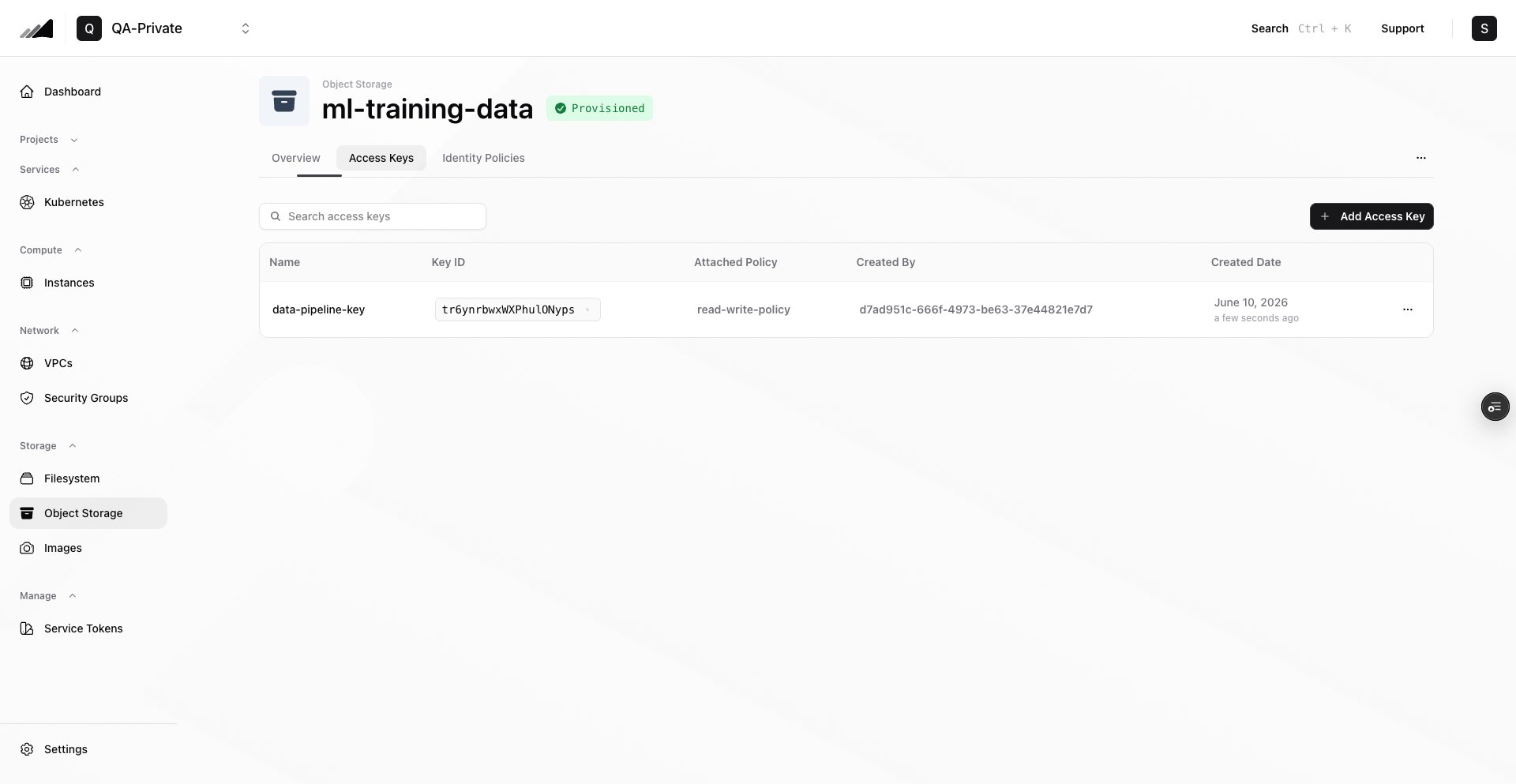
 5. **Create an access key**
* Open the **Access Keys** tab
* Click **Add Access Key**
* Enter an access key name
* Click **Next: Select Policy**
* Select an existing identity policy, or upload a custom `.json` policy document and give it a policy name
* Click **Add Access Key**
* Copy the **Access Key ID** and **Secret Access Key** immediately from the creation dialog
5. **Create an access key**
* Open the **Access Keys** tab
* Click **Add Access Key**
* Enter an access key name
* Click **Next: Select Policy**
* Select an existing identity policy, or upload a custom `.json` policy document and give it a policy name
* Click **Add Access Key**
* Copy the **Access Key ID** and **Secret Access Key** immediately from the creation dialog
 6. **Configure your S3 client**
* Set the endpoint URL, access key ID, and secret access key in your S3 client
* Use any S3-compatible workflow to create buckets and manage objects
Example AWS CLI configuration:
```bash theme={null}
export AWS_ACCESS_KEY_ID=""
export AWS_SECRET_ACCESS_KEY=""
export AWS_DEFAULT_REGION=""
export EP="https://"
aws --endpoint-url "$EP" s3api list-buckets
aws --endpoint-url "$EP" s3 mb s3://example-bucket
aws --endpoint-url "$EP" s3 cp ./data.csv s3://example-bucket/data.csv
```
The Nscale CLI includes an S3 client with the same flag names and response shapes as `aws s3api`, for the operations it supports. Run `nscale s3api configure` to pick an endpoint and create an access key in one step. See [`nscale s3api`](/docs/cli/s3api).
## Share objects with pre-signed URLs
Object Storage does not support public objects or anonymous access. To give someone temporary access to an object without sharing your access keys, generate a **pre-signed URL**. Anyone with the URL can download the object until the URL expires, and access stays time-limited and tied to a specific object, which is safer than making the object public.
Pre-signed URLs are valid for a maximum of **7 days** (`604800` seconds). For continued access, generate and share a new URL before the current one expires. Generating a new URL does not extend the old one.
The following example uses the AWS CLI to create a bucket, upload a file, generate a pre-signed URL, and download the file with that URL:
```bash theme={null}
export AWS_ACCESS_KEY_ID=""
export AWS_SECRET_ACCESS_KEY=""
export AWS_DEFAULT_REGION=""
export EP="https://"
export BUCKET="example-bucket"
# 1. Create a bucket
aws --endpoint-url "$EP" s3 mb "s3://$BUCKET"
# 2. Upload a file
aws --endpoint-url "$EP" s3 cp ./demo.mov "s3://$BUCKET/demo.mov"
# 3. Generate a pre-signed URL that is valid for 1 hour (3600 seconds)
URL=$(aws --endpoint-url "$EP" s3 presign "s3://$BUCKET/demo.mov" --expires-in 3600)
echo "$URL"
# 4. Download the object with the pre-signed URL (no credentials required)
curl -fSL -o downloaded-demo.mov "$URL"
```
Share the URL printed in step 3 with anyone who needs access. An unsigned request to the same object, such as `curl "$EP/$BUCKET/demo.mov"`, is denied.
When you use pre-signed URLs:
* **Sign with a least-privilege key.** The signing key must allow `s3:GetObject` for the object being shared. Consider generating URLs with a dedicated access key whose read-only identity policy is scoped to the objects you want to share.
* **Keep expiry times short.** Choose the shortest `--expires-in` value that fits your use case, and treat the URL like a secret while it is valid.
* **Revoke access early by deleting the key.** Deleting the access key that signed a URL invalidates every URL signed with it, even before they expire.
## Terraform Example
If you provision infrastructure with Terraform, use the Object Storage example in the public `terraform-provider-nscale` repository as a starting point:
Create an Object Storage endpoint, identity policy, and access key with the nscale Terraform provider
## Common Issues / Troubleshooting
1. **Symptom:** You can't select a region when creating Object Storage
**Likely cause:** The selected project already has an endpoint in that region.
**Fix:** Choose another project, or delete the existing endpoint for that project/region if it is no longer needed.
2. **Symptom:** No endpoint URL is shown
**Likely cause:** The endpoint is still provisioning or has not published its public exposure details yet.
**Fix:** Wait for the endpoint status to become ready/provisioned. If the URL still does not appear, check the endpoint health status or contact support.
3. **Symptom:** You can't retrieve an access key secret later
**Likely cause:** Secrets are returned only once, when the access key is created.
**Fix:** Create a new access key, update your workload with the new credentials, then delete the old access key.
4. **Symptom:** S3 requests fail with access denied
**Likely cause:** The access key is attached to an identity policy that does not allow the requested S3 action or bucket/object resource.
**Fix:** Review the policy attached to the access key. Confirm it includes the required `s3:` actions and the correct bucket/object resources.
5. **Symptom:** You can't remove an identity policy
**Likely cause:** One or more access keys still reference that policy.
**Fix:** In the **Identity Policies** tab, check **Keys Using**. Delete or recreate the access keys that use the policy, then remove the policy.
6. **Symptom:** An object uploaded with a `public-read` ACL still returns access denied for unauthenticated requests
**Likely cause:** Object Storage does not support public (anonymous) access. ACLs such as `public-read` do not make objects publicly readable.
**Fix:** Generate a [pre-signed URL](#share-objects-with-pre-signed-urls) for the object and share that URL instead.
***
## Related Resources
Manage object storage endpoints, policies, and access keys from the command line
Use shared NFS storage when workloads need a mounted filesystem
Run S3-compatible clients from your compute instances
Manage object storage endpoints and access keys programmatically via the Storage Service API
This documentation is built and hosted on [Mintlify](https://mintlify.com), a developer documentation platform.
6. **Configure your S3 client**
* Set the endpoint URL, access key ID, and secret access key in your S3 client
* Use any S3-compatible workflow to create buckets and manage objects
Example AWS CLI configuration:
```bash theme={null}
export AWS_ACCESS_KEY_ID=""
export AWS_SECRET_ACCESS_KEY=""
export AWS_DEFAULT_REGION=""
export EP="https://"
aws --endpoint-url "$EP" s3api list-buckets
aws --endpoint-url "$EP" s3 mb s3://example-bucket
aws --endpoint-url "$EP" s3 cp ./data.csv s3://example-bucket/data.csv
```
The Nscale CLI includes an S3 client with the same flag names and response shapes as `aws s3api`, for the operations it supports. Run `nscale s3api configure` to pick an endpoint and create an access key in one step. See [`nscale s3api`](/docs/cli/s3api).
## Share objects with pre-signed URLs
Object Storage does not support public objects or anonymous access. To give someone temporary access to an object without sharing your access keys, generate a **pre-signed URL**. Anyone with the URL can download the object until the URL expires, and access stays time-limited and tied to a specific object, which is safer than making the object public.
Pre-signed URLs are valid for a maximum of **7 days** (`604800` seconds). For continued access, generate and share a new URL before the current one expires. Generating a new URL does not extend the old one.
The following example uses the AWS CLI to create a bucket, upload a file, generate a pre-signed URL, and download the file with that URL:
```bash theme={null}
export AWS_ACCESS_KEY_ID=""
export AWS_SECRET_ACCESS_KEY=""
export AWS_DEFAULT_REGION=""
export EP="https://"
export BUCKET="example-bucket"
# 1. Create a bucket
aws --endpoint-url "$EP" s3 mb "s3://$BUCKET"
# 2. Upload a file
aws --endpoint-url "$EP" s3 cp ./demo.mov "s3://$BUCKET/demo.mov"
# 3. Generate a pre-signed URL that is valid for 1 hour (3600 seconds)
URL=$(aws --endpoint-url "$EP" s3 presign "s3://$BUCKET/demo.mov" --expires-in 3600)
echo "$URL"
# 4. Download the object with the pre-signed URL (no credentials required)
curl -fSL -o downloaded-demo.mov "$URL"
```
Share the URL printed in step 3 with anyone who needs access. An unsigned request to the same object, such as `curl "$EP/$BUCKET/demo.mov"`, is denied.
When you use pre-signed URLs:
* **Sign with a least-privilege key.** The signing key must allow `s3:GetObject` for the object being shared. Consider generating URLs with a dedicated access key whose read-only identity policy is scoped to the objects you want to share.
* **Keep expiry times short.** Choose the shortest `--expires-in` value that fits your use case, and treat the URL like a secret while it is valid.
* **Revoke access early by deleting the key.** Deleting the access key that signed a URL invalidates every URL signed with it, even before they expire.
## Terraform Example
If you provision infrastructure with Terraform, use the Object Storage example in the public `terraform-provider-nscale` repository as a starting point:
Create an Object Storage endpoint, identity policy, and access key with the nscale Terraform provider
## Common Issues / Troubleshooting
1. **Symptom:** You can't select a region when creating Object Storage
**Likely cause:** The selected project already has an endpoint in that region.
**Fix:** Choose another project, or delete the existing endpoint for that project/region if it is no longer needed.
2. **Symptom:** No endpoint URL is shown
**Likely cause:** The endpoint is still provisioning or has not published its public exposure details yet.
**Fix:** Wait for the endpoint status to become ready/provisioned. If the URL still does not appear, check the endpoint health status or contact support.
3. **Symptom:** You can't retrieve an access key secret later
**Likely cause:** Secrets are returned only once, when the access key is created.
**Fix:** Create a new access key, update your workload with the new credentials, then delete the old access key.
4. **Symptom:** S3 requests fail with access denied
**Likely cause:** The access key is attached to an identity policy that does not allow the requested S3 action or bucket/object resource.
**Fix:** Review the policy attached to the access key. Confirm it includes the required `s3:` actions and the correct bucket/object resources.
5. **Symptom:** You can't remove an identity policy
**Likely cause:** One or more access keys still reference that policy.
**Fix:** In the **Identity Policies** tab, check **Keys Using**. Delete or recreate the access keys that use the policy, then remove the policy.
6. **Symptom:** An object uploaded with a `public-read` ACL still returns access denied for unauthenticated requests
**Likely cause:** Object Storage does not support public (anonymous) access. ACLs such as `public-read` do not make objects publicly readable.
**Fix:** Generate a [pre-signed URL](#share-objects-with-pre-signed-urls) for the object and share that URL instead.
***
## Related Resources
Manage object storage endpoints, policies, and access keys from the command line
Use shared NFS storage when workloads need a mounted filesystem
Run S3-compatible clients from your compute instances
Manage object storage endpoints and access keys programmatically via the Storage Service API
This documentation is built and hosted on [Mintlify](https://mintlify.com), a developer documentation platform.